


Research: line-art automatic colorization, first beta-test and review with Gmic
Introduction :
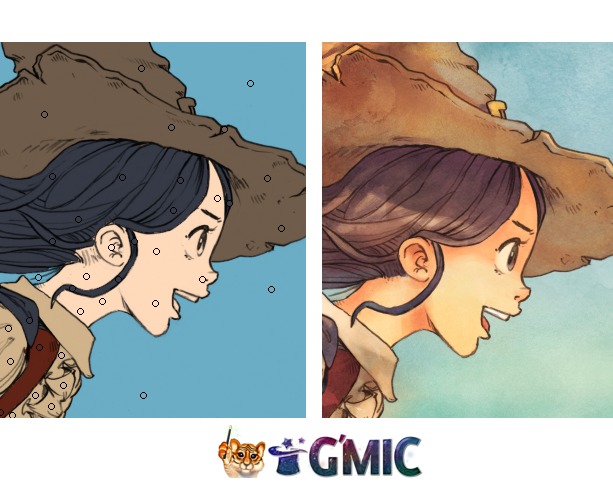
This is an article dedicated to my research for using the next generation of computer-assisted tool for colorization image filter. I'll try to explain the Gmic filter 'colorize'. This filter was created by David Tschumperlé , project manager and main developer of Gmic and I see a lot of potential in it. The filter improved a lot on this Autumn 2014 ( and was started around spring 2013 ). I kept an eye on the filter development since the very beginning as a tester, but I got totally enthusiast about it only recently ; especially when filter became interactive and more user friendly. For sure, this type of auto-colorisation will grow everywhere in the coming years.
1) What kind of problems this filter will solve?
The first steps at colorizing a line-art is usually with flat zone. This process is a super long, annoying and robotic work. Here is two way of how artists handle this task since coloring comic in the digital era started (around the end of the 90's):
(illustration a.) Brush : simply take a brush and fill manually the color on a layer under
(illustration b.) Fill Bucket : use a fill bucket tool and click the area, then correct with brush
...of course, both methods (often used together) introduce quality problems (c.)
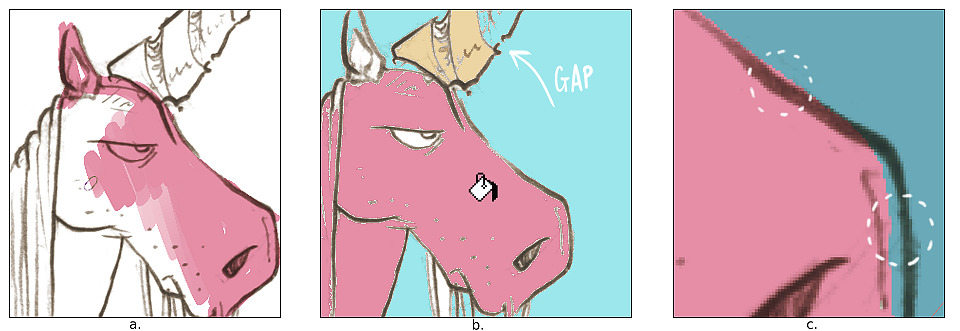
With practise and time, a lot of artist find their own recipes to reduce this step or improve quality (using lasso tools, vector shapes, etc). Also digital-painting software proposes often a set of features to make the life of artist less difficult around this two methods (eg. auto-enlarge fill bucket result, gap detection for fill bucket, better selection tools, filter to fill every zones with random colors) ...etc... Here I'm used to color my artworks with the brush method 'a.'. It's might not look obvious on the size of the little 'grumpy unicorn drawing' here, but I'm sure you can imagine the long time it represents repeating this on all the island of colors in a comic pages (and more in a episode, chapter or comic book). So, it is not surprising that even on the comic industry, 'preparing page with flat color zone' is a full time job.
2) What solution proposes this Gmic filter:
Gmic 'colorize' filter works a bit like a smart fill bucket tools on steroïd. First, this is an interactive tool and the task become suddenly a funnier part of the job because it has a little something of a videogame. Secondly, -and that's the most important- it produces a clean result.
How does it works:
- Feed Gmic with a lineart ( eg. a b&w picture )
- Select colors and place color markers/tokens on the picture ( you can move them or delete them too )
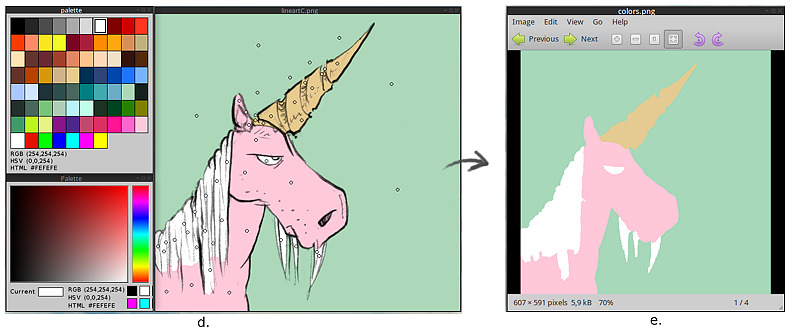
- At any moment press <Space> to update the rendering and gmic will smartly fill the colors detecting edges (d.)
- Place more markers until the result is good and keep press <space> to update.
- Press Enter at the end ; Gmic will export a color map image as a result. (e.)
Gmic fills the gaps and doesn't care if the line are transparent, or sketchy.
3) The result :
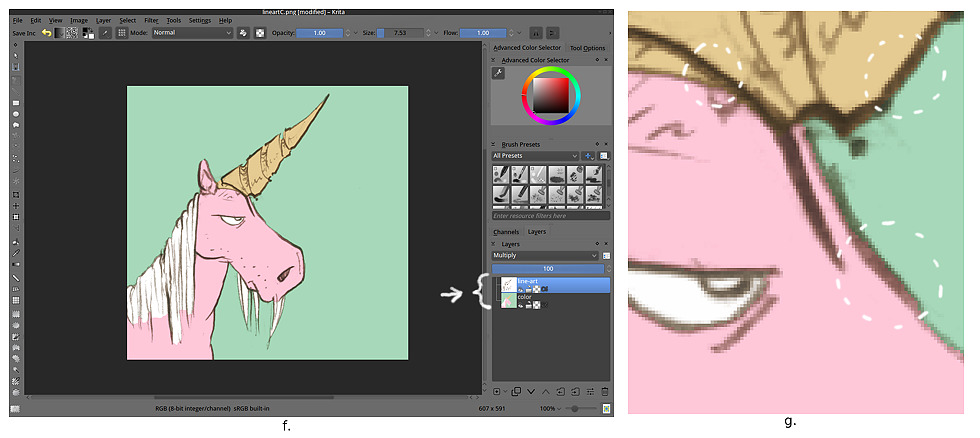
Once your color map loaded in Krita ; put your line-art on the top of your layer stack with the 'multiply' mode to see how the two layer are merging visually (f.) . You might be amazed by how the color-map is exact and clean ; even under transparent line-art (g.). For sure, you 'll meet minor issue here and there and will need to clean parts manually sometime, but the bigger part of the work is done for setting your flat zones, and it's done very quickly.
Real example inside a workflow :
In the upcoming Pepper&Carrot ep.3, an open webcomic I'm writing, I used the colorize filter to prepare my comic pages.
1) Setting area with clean edges
I don't use the filter 'colorize' to color all the little details (eg. the white of the eyes). The filter is able to do this for sure, but for my usage I prefer to obtain only large groups of color and leave details for later.
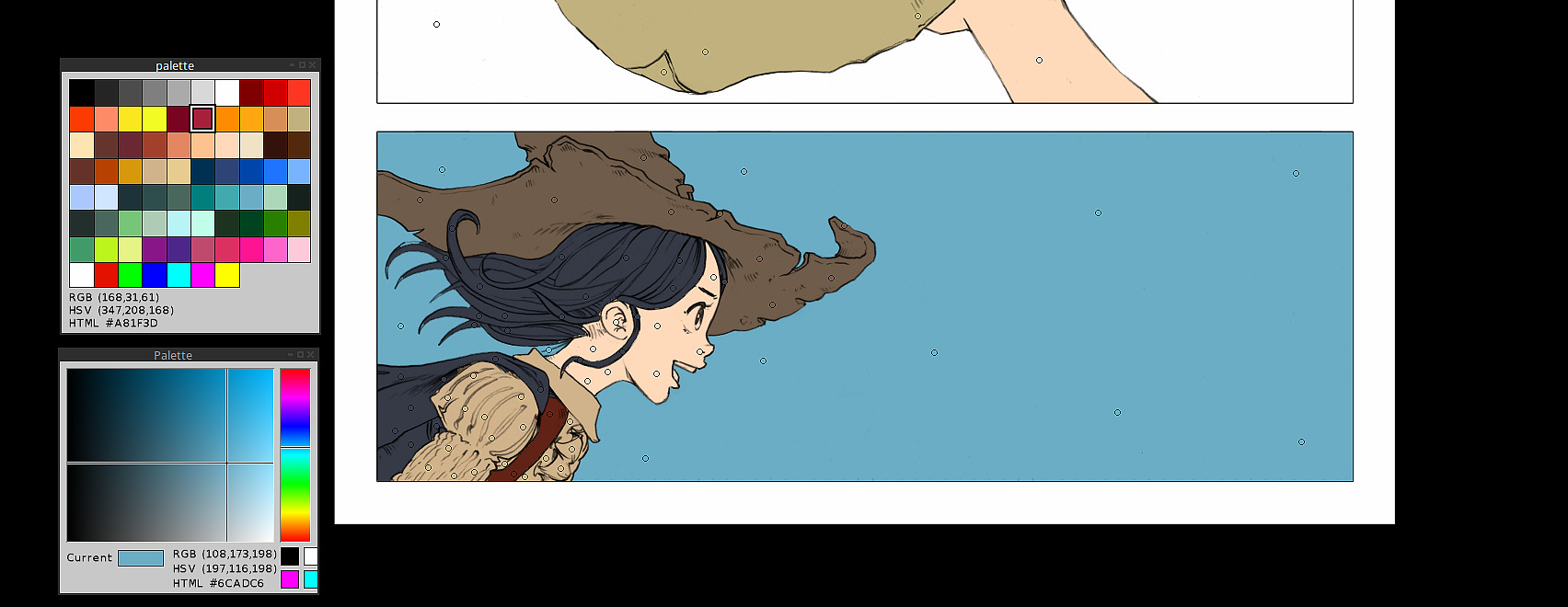
click to enlarge
2) In Krita
I reinject the colormap obtained by Gmic in my Krita *.kra files, and correct the areas if necessary. In this case, I had a glitch only on her hair ( still visible on the screenshot ) ; easy to correct with a brush with aliasing.

click to enlarge
3) Painting within the limits of selected areas
Real fun start here; I keep the layer with Gmic result on the bottom of my stack and use it as a color-selector layer ; I use "magic wand" on it to select area of colors. Within this selections, I can paint freely while keeping really clean edges. It's really convenient for my style, because I like soft shading, and not shading with only hard edges as often used on comic, cartoon and anime.
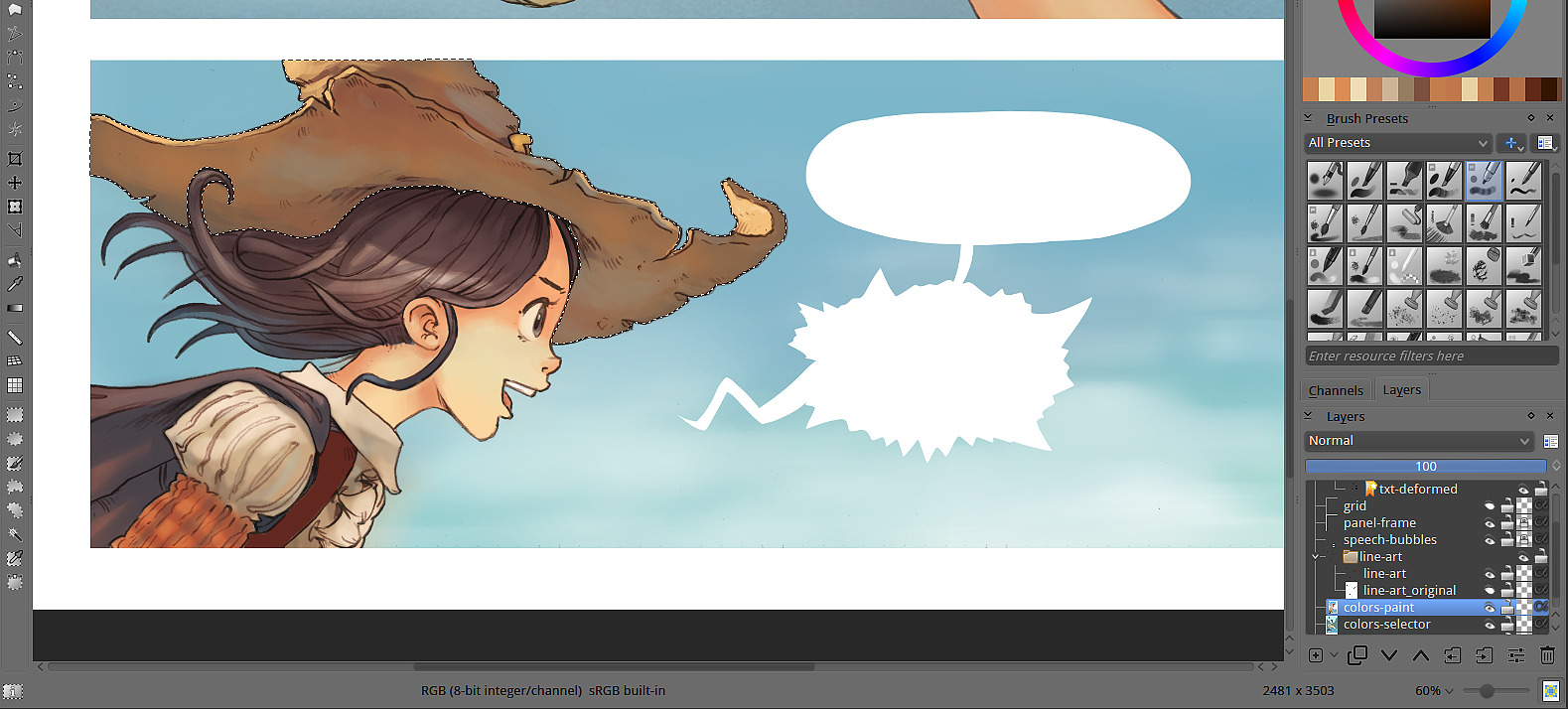
click to enlarge
4) Post-production effects
I add a color-grading pass using often the adjustment curves, color-balance, and contrast/brightness curve. The final touch on the artwork is to texture my result for the watercolor effect.
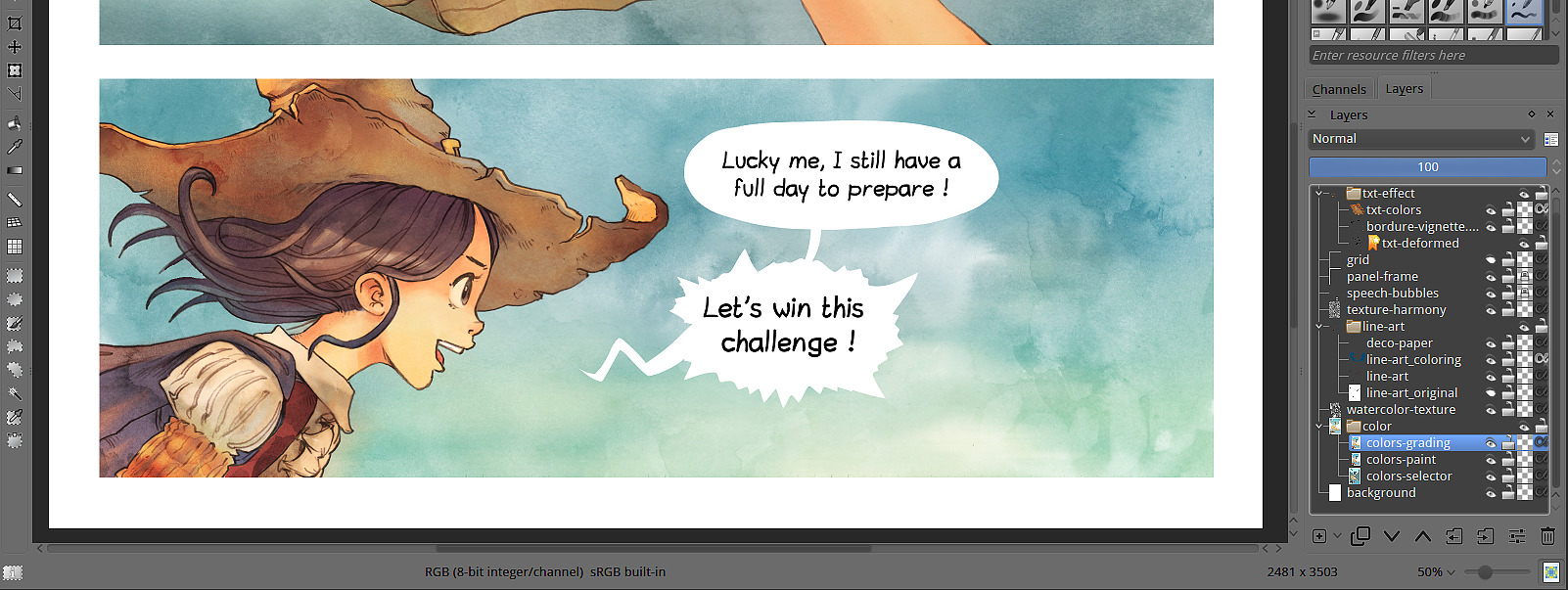
click to enlarge
This filter is very recent in September 2014 and still beta. Package for mac, windows and Linux are available here on sourceforge on the sourceforge of the Gmic project. If you have already a version of Gmic better than 1.6.1 , then you don't need to install anything. Just refresh the filter database. This installation will install the gimp_gmic plugin as well. Notes for 'buntu Linux 14.04 , 64bit: you'll need libtiff4_3.9.7-2ubuntu1_amd64.deb , required dependencie, available here (from older repo). I installed gmic_1.6.*_beta_amd64.deb available here on sourceforge.
Tutorial
You'll need Gimp 2.8 installed, read the note above to know how to install it. In the future month, I'm sure the filter will be just part of Gmic. [edit 2015: GMIC filters are back in Krita]
Open with Gimp your Line art
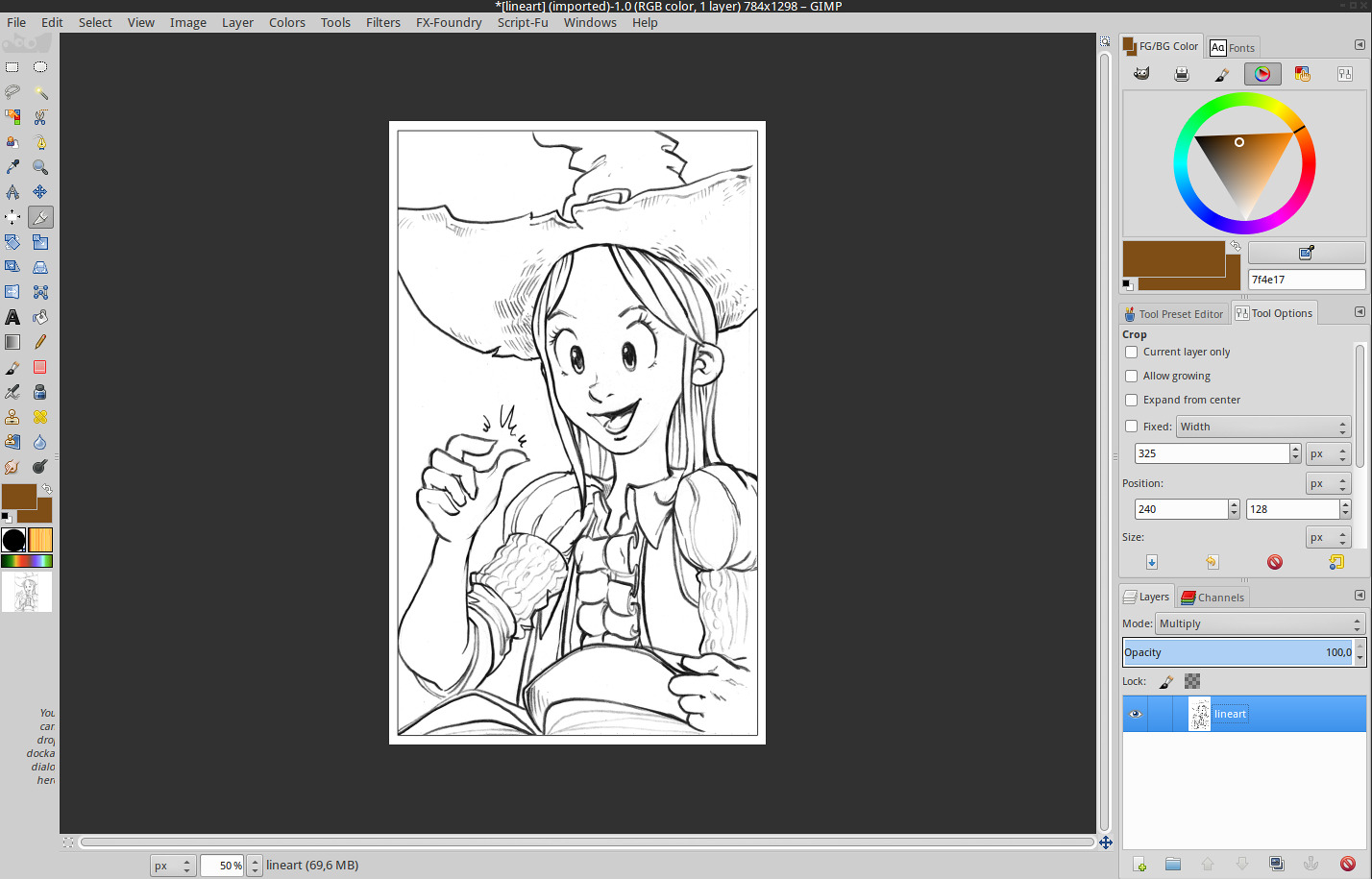
click to enlarge
The filter can be found on regular installation under the menu Filters > G'MIC
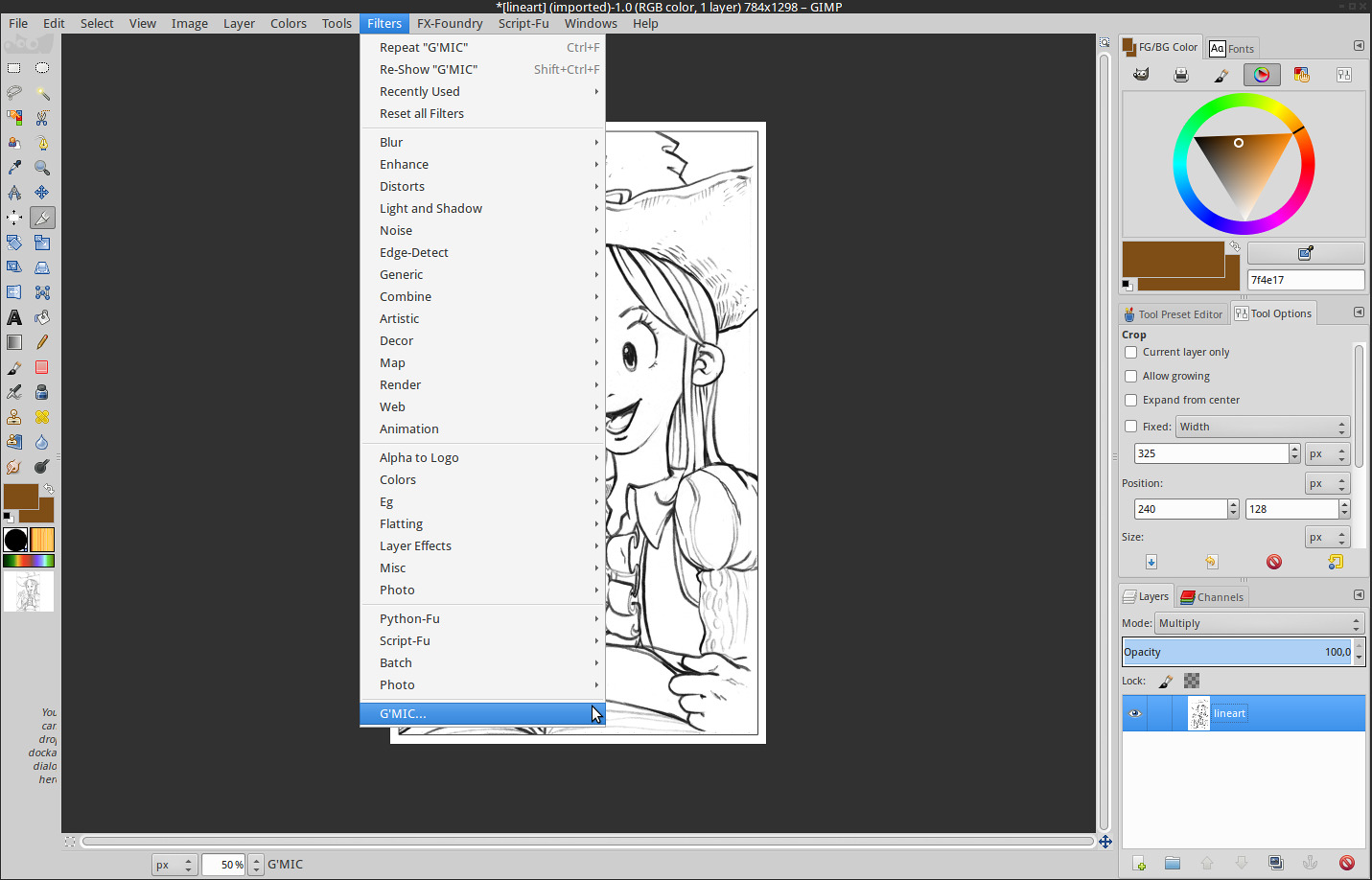
click to enlarge
Note : refresh your filter database ( press the button of a circular arrow at the bottom of the 'Available filters' list. it's between a '+' button to add the filter to your favorites, and a checkbox with 'internet' label, to benefit from the additional Internet filters update )
This is the harder part ; Select under the categories 'Black&White' (1.) the filter 'Colorize[interactive]' (2.) ; then on the right side, setup (3.) :
- Input type : Lineart ( we choose 'Lineart' here , exept if you want to recolorize an old black&white photo )
- Output type : Original image + color-only layer ( to get two resulting layers )
- View resolution : Choose a setting depending your hardware performance , this will affect the preview refresh time, and preview quality.
- Palettes : optionnal ; select on disk a palette ( *.gpl format )
Then when ready, press Ok (4.)
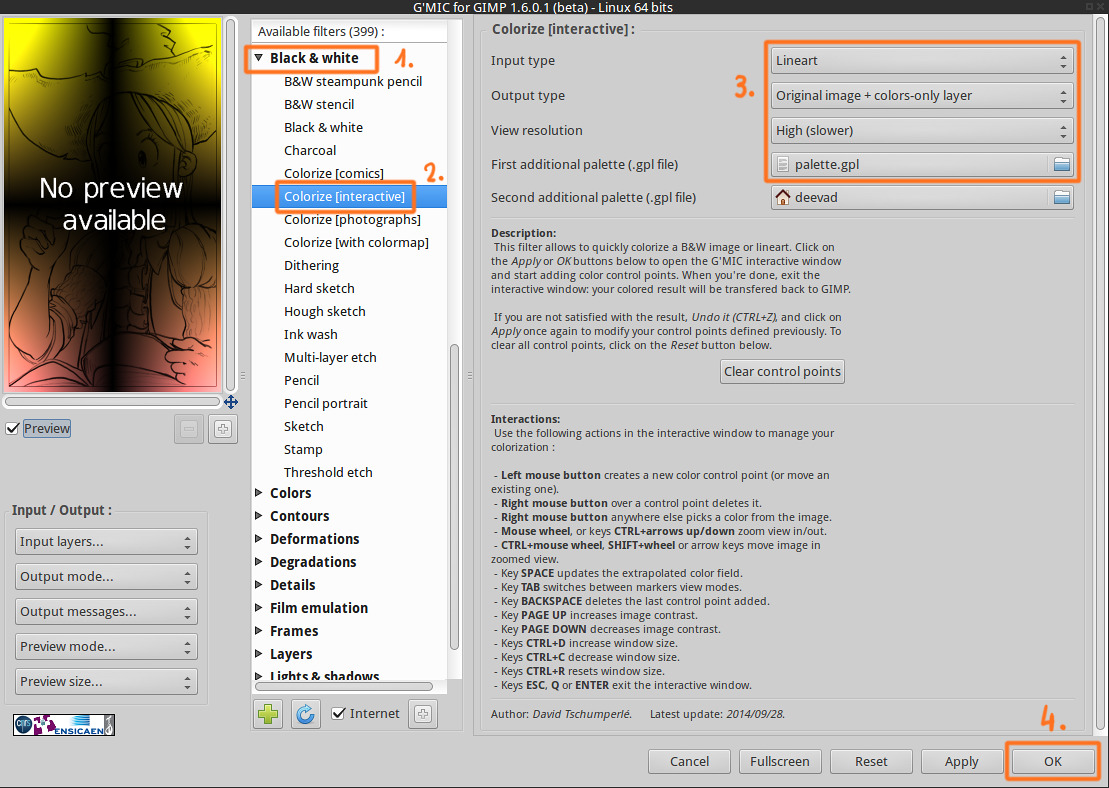
click to enlarge
The dialog will appear on your desktop ( you'll probably need to reorganize the windows a bit to be more comfortable ). Mini how to use :
You can start to take a color from the palette , and place your markers on the canvas
Press <space> to update the filter, do it often.
Usefull : right click on a marker to delete it ; and right-click on a color on canvas to color-pick it.
When the work is done, press <Enter>
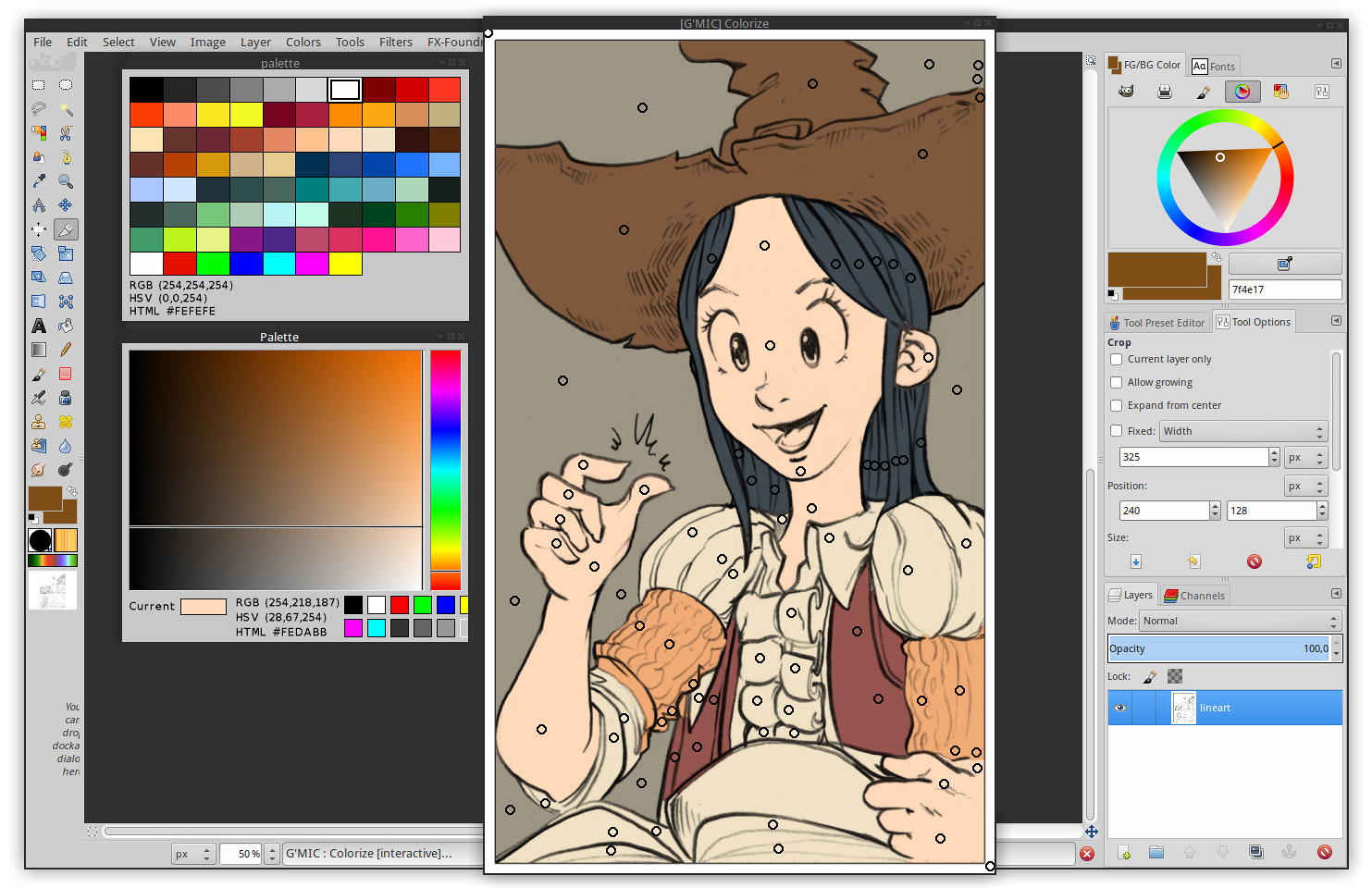
click to enlarge
Here are all the list of the keyboard commands so far :
- Left mouse button creates a new colored control point (or moves an existing one).
- Right mouse button over a control point deletes it.
- Right mouse button anywhere else picks a color from the image.
- Mouse wheel, or keys 'CTRL+arrows UP/DOWN' zoom view in/out.
- 'CTRL+mouse wheel', 'SHIFT+mouse wheel' or arrow keys move image in zoomed view.
- Key 'SPACE' updates the extrapolated color field.
- Key 'TAB' switches between markers view modes.
- Key 'BACKSPACE' deletes the last control point added.
- Key 'PAGE UP' increases image contrast.
- Key 'PAGE DOWN' decreases image contrast.
- Keys 'CTRL+D' increase window size.
- Keys 'CTRL+C' decrease window size.
- Keys 'CTRL+R' reset window size.
- Keys 'ESC', 'Q' or 'ENTER' exit the interactive window.
When you press <enter> the filter will export in your Gimp layer stack 2 layers ; the original line and the color-map.
You can then place your lines on the top (1.) and set the blending mode to multiply (2.) ( or using the Color > Color to Alpha to remove the white part of the image )
Just export this as a *.ora ( open raster ) if you want to continue to work your color on Krita or Mypaint :)
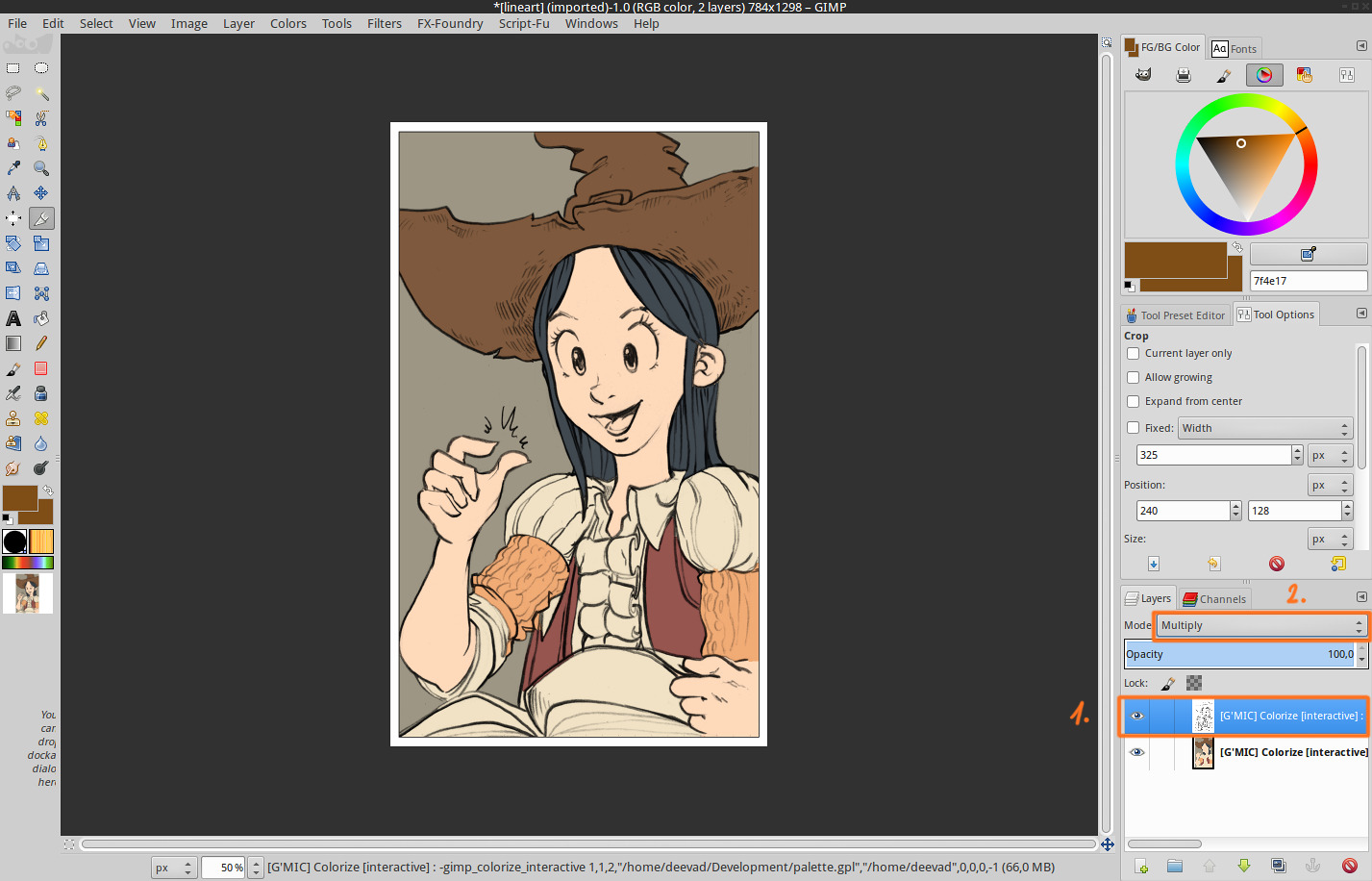
click to enlarge
That's all :-)
Tutorial : command line style
Start to update the filter , in a terminal :
gmic -update... to update and download all the recent filters. That's it. You have Gmic beta with last filters.
You can then launch Gmic 'colorize' filter this way :
Save your lineart in a folder ( eg. lineart.png ) and open a terminal into this folder, and copy or adapt :
gmic lineart.png -x_colorize 1,1024,1 -s c,{3-s} -o[-1] colors.pngHere is another variant if you save also in this folder a palette.gpl file to get an additional palette dialog.
gmic linear.png -input_gpl palette.gpl -x_colorize[0] 1,1024,1,[-1] -k[0] -s c,{3-s} -o[1] colors.pngIt will open a canvas with your artwork, and under or around a dialog with the palette.
The terminal will write you how to use the filter, and command to use. ( screenshot under )
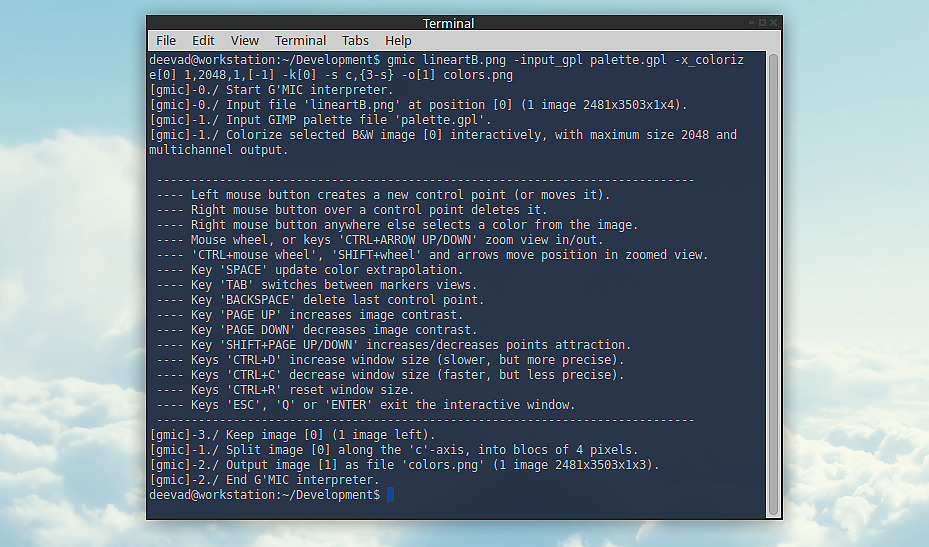
a Terminal windows , after a Gmic colorize filter done from command line
That's it, have a good coloring time
Video demo
Here is a demo video, by David Tschumperlé over a Pepper&Carrot line-art :-)
Conclusion :
I saw so many comic artist compromising their own line-art style by making all the area closed, all the lines pure black, etc... What's the meaning of all of that ? optimize the artwork to use non efficient tools as the fill-bucket? Yes. Most of line-art artworks are still under the slavery of outdated tools constrains. And most artist prefer change their own style for something more synthetic, robotic and predictable in order to win a bunch of painful hours of work. I don't blame, and I totally understand as I tried myself during many years to ink this way, to optimize my own workflow to make the fill-bucket tool easier to use. But I couldn't use pure black lines, use only big simple shapes and close all my line gaps ; I like the feeling to ink my comics with pencil , and my lines are full of grays shades, and I don't close always my lines and shapes. I even like to crosshatch a bit, and detail texture with messy lines here and there. A nightmare to colorize... But a filter like the Gmic 'colorize' is really bringing on the table an innovating answer to the problem. This will really improve my productivity, and the quality of my artworks as I can now invest more time on the shading and post-production. I even think it will help me to make more spontaneous pencil artworks, get more relax and ink more freely ; because I know they'll be simple to color... Next step ? Getting this directly plugged into the filter menu of Krita ? :-)
Many thanks to David Tschumperlé for all his work on Gmic and many thanks to Timothée GIET too for all the test he also made of this very cool tool.
[edit 2015: It was directly plugged in Krita]
[edit 2018: Now Krita made a native version of this filter: check the Colorize mask feature.]
